Create & assign
Create a Work Order in the portal with instructions, a reference picture of what needs fixing, and the customer or site contact’s name, street address, building number, and phone number. Assign an activated company device.
Create work in the portal. Send it to a company phone. Keep the job, the technician’s evidence, and the office workflow connected.
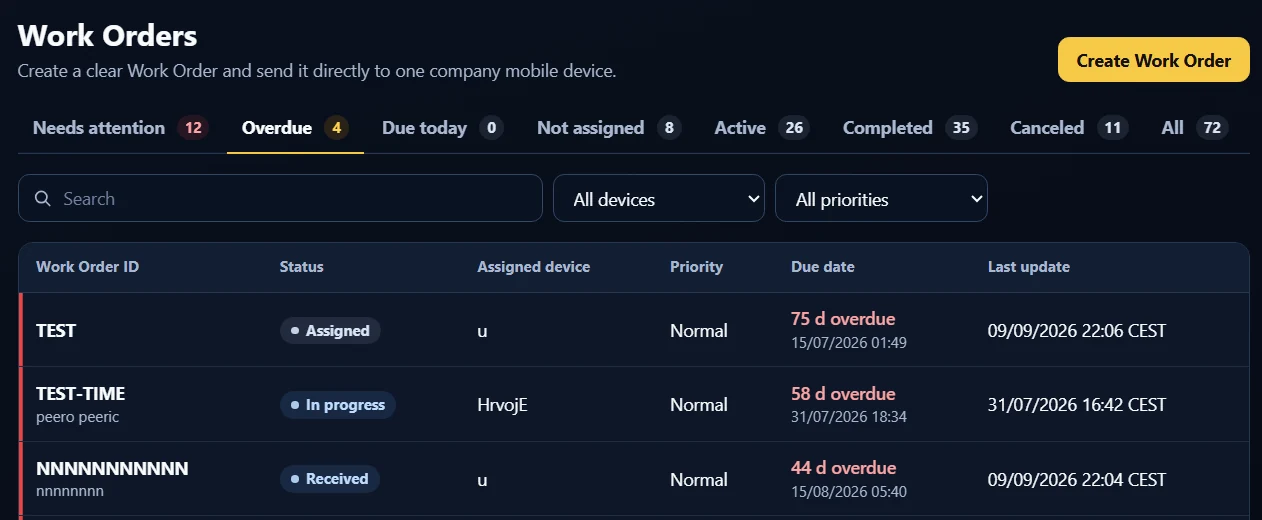
Create a Work Order in the portal with instructions, a reference picture of what needs fixing, and the customer or site contact’s name, street address, building number, and phone number. Assign an activated company device.
A push notification tells the phone’s user that a Work Order has been assigned. The technician opens the instructions, takes photos or records video with either camera, and writes down what was done. Photo stamps include date/time, GPS coordinates, and a geocoded address; the address can be corrected manually during capture.
Review the technician’s notes, evidence, and Work Order PDF. Enable email notification for each Work Order upload, then browse the connected storage and download the package as a ZIP.
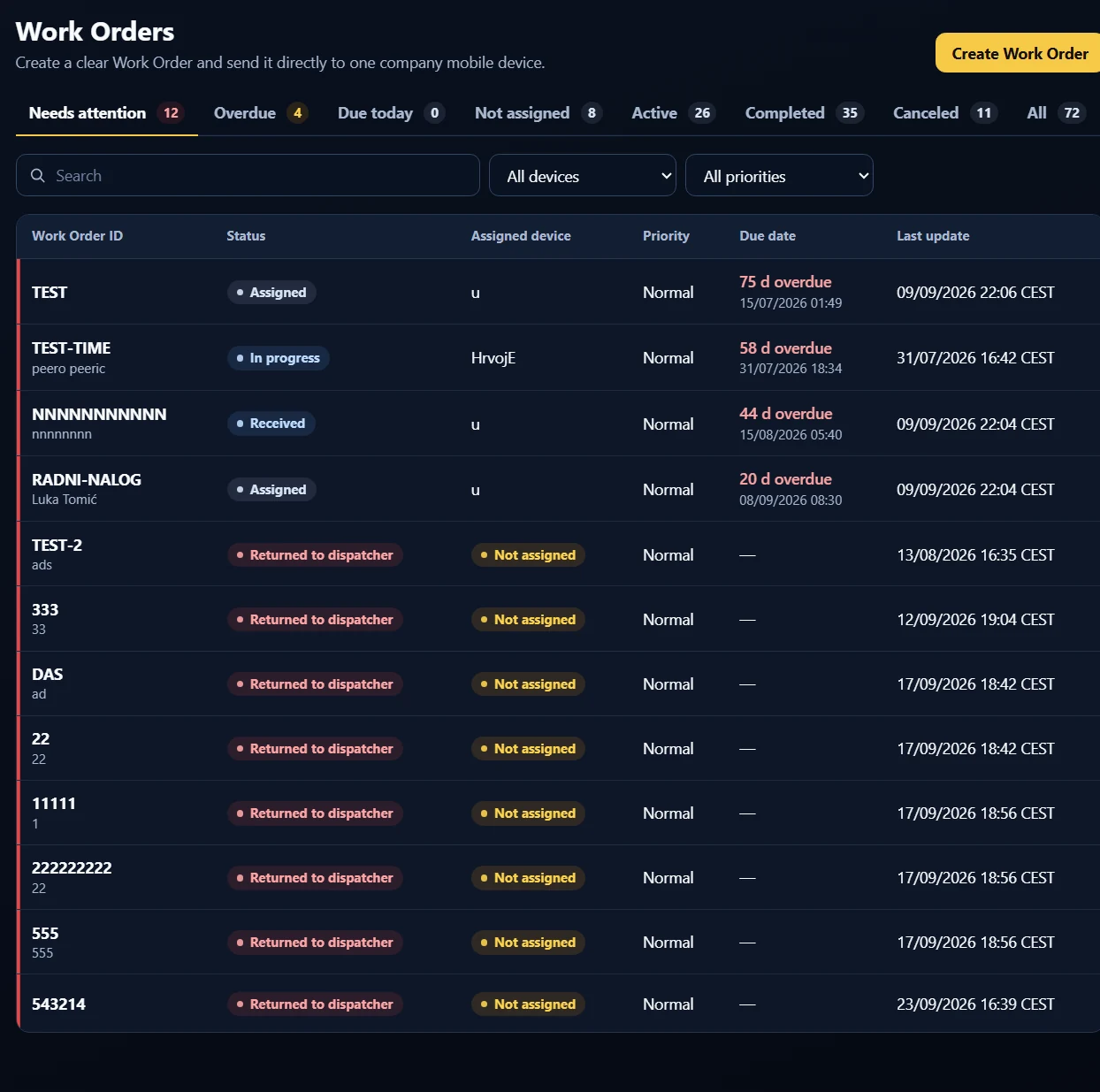
Use Needs attention, overdue, due-today, and not-assigned views to focus dispatch work. A technician can return the Work Order to the office with a note—for example, “This job is rescheduled for Friday”—so dispatchers can decide the next step.
Tap the contact’s phone number to open the phone’s dialer with the number already entered. The technician chooses when to start the call.
Tap the street address to open maps on the phone. The technician can then start directions and navigate to the field location.
Send a reference picture with the Work Order so the technician can see what needs fixing. Written office instructions and the technician’s work-performed notes stay with the job.
Take the before photos, completely close the app, and return after the work. Reopen the same persistent Work Order session, capture the after photos, add your notes, and upload the complete package.
If the connection drops, uploading resumes when the phone comes back online. Interrupted connectivity does not mean starting the evidence workflow again.
Photos stay within the Field Bundle workflow, not in the technician’s personal gallery. If an upload fails, share the evidence package as a ZIP through Android’s native share menu.
Tell us about your team, your Work Orders, and where your evidence needs to live.